
How exactly do you use a newly acquired PoC radio?
author: z
2026-03-26
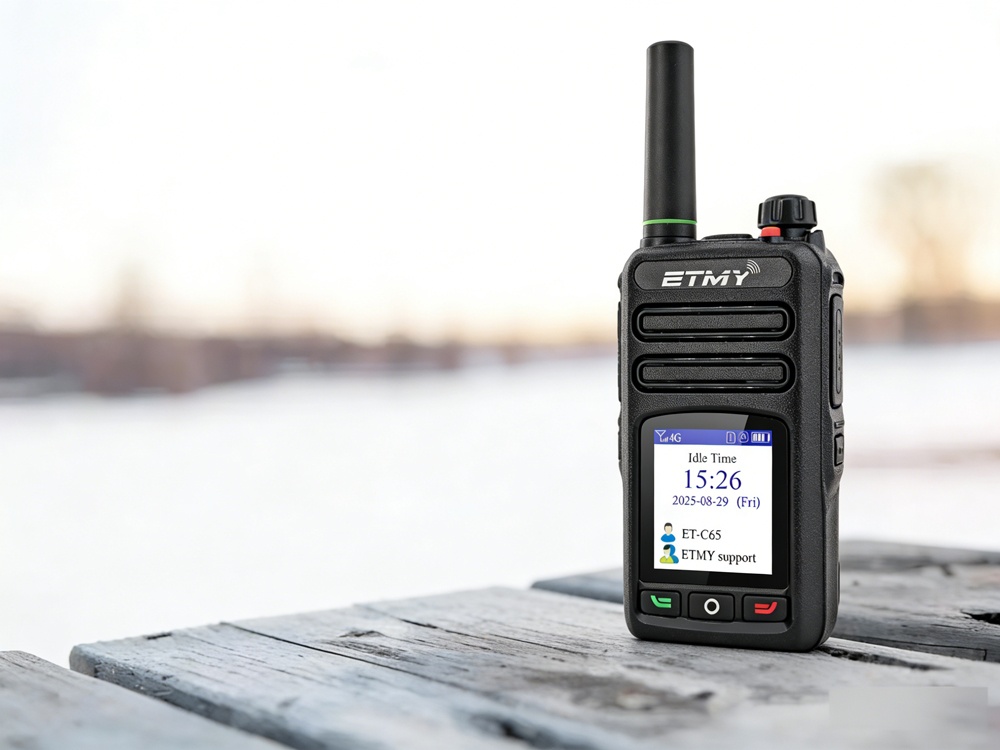
For many beginners just getting started with two-way radios, receiving a new device can often feel overwhelming—leaving them unsure of where to begin. Unlike traditional FM analog or DMR digital radios, PoC radios typically require some "preparatory work" before they can be used. Since these public-network radios rely on mobile communication networks to facilitate long-distance communication, a newly purchased unit must undergo four major stages: "Initial Preparation," "Device Activation," "Feature Configuration," and "Testing & Verification." This ensures compliance with radio usage regulations and operational requirements. The specific steps are outlined below:
Confirm the Device and Accessories Are Complete
1. Check Device Integrity: Upon opening the package, verify that all components—including the PoC radio unit, battery, antenna, charging equipment, user manual, and other accessories—are present. Simultaneously, inspect the radio body for any physical damage and ensure the antenna is securely attached (to prevent interference with signal reception). Note that some models come bundled with a dedicated SIM card; be sure to confirm its presence as well.
2. Prepare a Dedicated SIM/IoT Card: PoC radios require the insertion of a dedicated IoT (Internet of Things) SIM card that supports 4G networks (Some models also support private network such as the ET-C58D); standard consumer phone SIM cards should not be used. If your device did not come with a bundled SIM card, you must purchase an IoT card compatible with your specific radio model. Ensure that data services have been activated on the card to avoid connectivity issues caused by an incompatible card type or a lack of active service. *Note:* For some radio models, the SIM card is "dual-bound" to both the device's IMEI and ICCID numbers; do not remove and insert this SIM card into other devices, as doing so may result in the card being permanently locked.
3. Familiarize Yourself with Basic Operations: Consult the user manual to identify the functions of key controls—such as the Power button, PTT (Push-to-Talk) button, Volume knob, and Menu button. Understand what the various states of the indicator lights signify (e.g., a solid red light may indicate an incorrect SIM card installation, while a slow-flashing green light indicates successful network registration). This foundational knowledge will pave the way for subsequent operational tasks.

Complete SIM Card Installation and Account Registration
1. Install the SIM/IoT Card: First, turn off the radio (to prevent device damage or data loss that can occur when inserting/removing a card while the unit is powered on). Open the battery compartment, and—following the notch orientation indicated in the user manual—correctly insert the SIM card into the designated slot and lock it in place. For some radio models, the battery must be removed to access the SIM card slot; once installation is complete, reinsert the battery and securely fasten the battery cover.
2. Power On and Complete SIM Card Activation: Press and hold the power button to turn on the device. The device will automatically search for a network. If the SIM card has not yet been activated, follow the on-screen prompts (e.g., scanning a QR code found in the packaging or accessing the device's network settings interface) to complete real-name authentication and activation. Some models allow for Wi-Fi connectivity to assist with this initial setup process. The activation process takes approximately 2 minutes. If the SIM card is already active, a voice prompt stating "Network registration successful" will be heard upon startup, and the indicator light will display the corresponding standby status.
3. Register a PoC Radio Platform Account: Most PoC radios require the registration of an associated management platform account to function properly. Visit the official website of the management platform specified in the device's user manual (e.g., the Beifeng Cloud Platform, "He Dui Jiang" App, etc.). Click "Register," fill in the required information—such as username, password, and mobile phone number—and complete the mobile phone verification code process. Some platforms may require you to upload proof of identity for review; once your application has been approved, you will be able to log in to your account.

Tailoring Settings to Usage Needs for Reliable Communication
1. Network and Basic Settings: Access the radio's menu and locate the "Network Settings" option to confirm that the network connection is functioning correctly (you may manually switch between 4G/5G or Wi-Fi). Additionally, adjust the volume to an appropriate level and configure basic parameters such as language, backlight settings, and automatic power-off timers. Some models allow you to set a SIM card PIN code to enhance device security.
2. Channel and Group Settings: PoC radios facilitate communication through specific groups or channels. These can be configured in two ways: First, by logging into the management platform to create a new group and add members, or by searching for a specific Group ID to join an existing group (which may require a group password or invitation). Second, by operating directly on the radio itself: access "Channel Settings" via the menu to manually enter a channel frequency or select one from a preset list. Some models support touchscreen input or scanning a QR code to join a group. If interoperability with analog radios is required, you must switch the device to "Analog Mode" before proceeding with frequency pairing.
3. Auxiliary Feature Settings (Optional): Depending on your specific usage requirements, you may configure features such as "Tone Encryption" (supporting either analog or digital encryption to ensure communication privacy; note that the same tone frequency must be set on the receiving party's device), "Dual Watch," or "Priority Channel Scanning" (ideal for scenarios requiring simultaneous monitoring of multiple channels, such as fleet dispatch operations). Some models also support advanced features such as location sharing, electronic geofencing, and call history playback; please refer to the user manual for step-by-step instructions on how to configure these functions.
Verifying Normal Call Functionality
1. Single-Unit Test: After powering on the device, observe the status indicator light to confirm successful network registration (indicated by a slow-flashing green light). Ensure there are no voice prompts such as "No SIM Card" or "Network Error." Press and hold the PTT (Push-to-Talk) button to speak; release the button to listen for your own voice feedback, checking for clarity and volume to confirm that both the microphone and speaker are functioning correctly.
2. Inter-Unit Test: Conduct a call test with other PoC radios within the same group or channel. When initiating a call, press and hold the PTT button, wait for one second, and *then* begin speaking (to ensure the system establishes a connection). Release the PTT button to listen for the other party's response, checking that the conversation flows smoothly and is free of static or noise. If call quality is poor, try adjusting the antenna position, moving to a different location (to minimize obstruction by buildings; if indoors, try moving closer to a window), or checking the current network signal strength.
3. Troubleshooting: If you encounter issues such as failure to register with the network, inability to initiate calls, or dropped calls, proceed through the following troubleshooting steps: Verify that the SIM card is installed correctly, that it is activated and not currently suspended due to non-payment, that the network signal is strong, and that the group/channel settings are consistent across devices. If the issue persists, please contact the device manufacturer's after-sales support or the management platform's customer service team for further assistance.

Daily Usage Tips
Ⅰ Signal Verification:
Check to ensure that your current location has 4G network coverage. If there is no 4G signal—or if the signal is very weak—the device cannot function in digital mode. In such cases, it is recommended to switch to analog mode or move to a different location to attempt usage.
Ⅱ Routine Maintenance:
Periodically check the antenna and SIM card slot to ensure they are not loose. Keep the device clean, and take care to avoid dropping it or exposing it to water/liquids.
Ⅲ IoT SIM Card Management:
PoC radios require payment for data usage associated with the installed SIM or IoT card. While some models include a limited period of free service upon purchase, you must subsequently pay the recurring fees on time to prevent service suspension and ensure the device remains operational. If the specific IoT SIM card you are using is unstable or unreliable, the PoC radio may frequently experience connectivity issues, data anomalies, or communication delays during operation.
How to use walkie talkie earpiece?- The Complete Guide to Walkie Talkie Earpiece Setup
What is ctcss on a walkie talkie? how to turn on?
Related Article

A practical guide to testing two-way radio coverage in the environment where people will actually depend on it.
Why a Radio Coverage Test Can Pass— and the System Still Fails in Real Operation

Most radio operators never take grounding seriously—until their gear is fried. This piece exposes three fatal grounding traps, from shallow rods to mixed signal-and-power grounds, then hands you a six-step, code-compliant checklist drawn from NEC Article 810 and IEEE Std 142. Copy this homework instead.
A grounding error can instantly fry your radio—Installation guide for radio system lightning protection

Professional walkie talkie earpiece guide covering how to put on, wear, and use earpieces correctly. Features brand-specific tips for Motorola, Hytera, Baofeng, and more with structural comparisons for optimal comfort and performance.
How to use walkie talkie earpiece?- The Complete Guide to Walkie Talkie Earpiece Setup
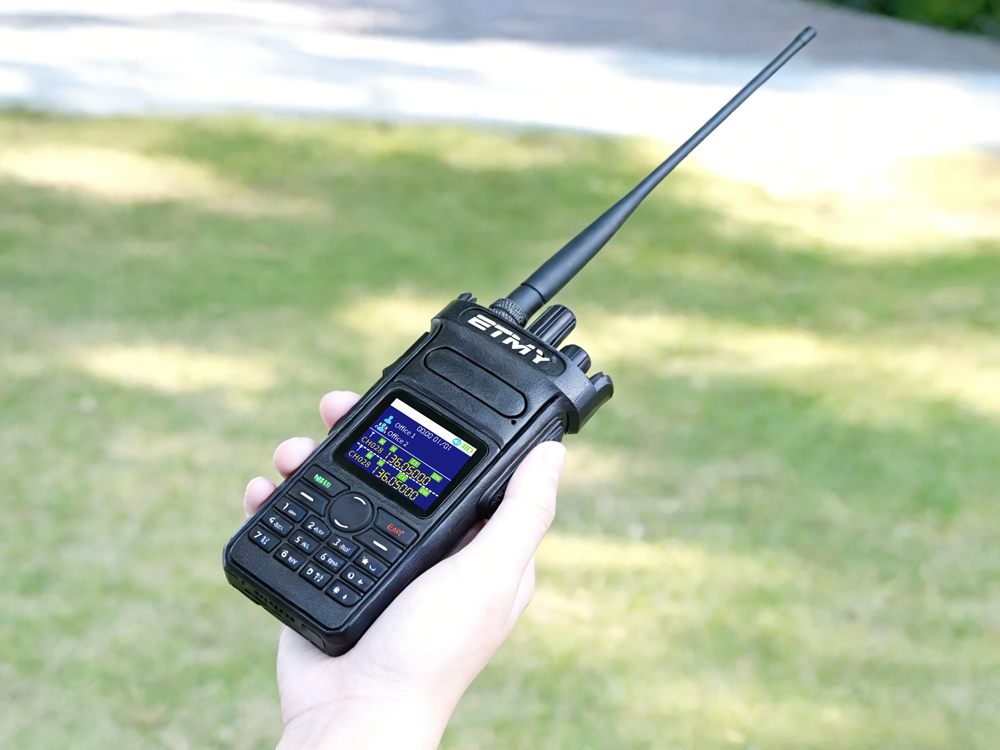
CTCSS function on walkie-talkies covers a frequency range from 67.0Hz to 250.3Hz. When transmitting in analog sub-tone mode, it transmits by continuously superimposing low-frequency, inaudible signals onto the carrier frequency, ensuring that only receivers receiving the same frequency can interpret the signal. This achieves anti-interference capabilities or allows the receiver to reject signals from other third parties.
What is ctcss on a walkie talkie? how to turn on?